


SAP Certified Associate C_THR92_2505 Real Exam Questions and Answers FREE Updated on Dec 19, 2025
C_THR92_2505 Ultimate Study Guide - PracticeTorrent
NEW QUESTION # 14
You need to create a chart of type Indicator: Numeric Point that displays the following output:
count of employees with the gender male divided by the count of employee with the gender female.
The chart can then be filtered for different departments. What calculation is required to create the metric?
- A. In Chart Builder, use a calculation of type: Aggregation.
- B. In Chart Builder, use a calculation of type: Restricted Measure.
- C. In Query Builder, use a calculated column.
- D. In Chart Builder, use a calculation of type: Calculated Measure.
Answer: D
Explanation:
* Understanding the Chart Type
* Indicator: Numeric Point charts display a single numeric value based on a calculated metric.
* The desired output requires dividing the count of male employees by the count of female employees.
* Solution
* A Calculated Measure in Chart Builder is the appropriate method to perform this calculation within the context of the chart.
* Why Other Options are Incorrect
* A (Aggregation): Aggregation alone cannot handle the required calculation.
* B (Calculated Column): Calculated columns are created at the query level and are not specific to the chart.
* D (Restricted Measure): Restricted measures limit data based on conditions but do not perform calculations across dimensions.
References
* SAP SuccessFactors Chart Builder Guide
NEW QUESTION # 15
In a live data query, what are user-prompted filter types? Note: There are 2 correct answers to this question.
- A. Dynamic
- B. Filter Groups
- C. Runtime
- D. People Scope
Answer: C,D
Explanation:
* Runtime Filters (A):
* These are filters that the user is prompted to set when executing a report. The user can define filter criteria dynamically at runtime.
* People Scope (D):
* This filter type allows reports to be filtered based on groups or populations defined in the user's permissions, such as specific departments or locations.
NEW QUESTION # 16
You are using a pivot table in your canvas report but the report does NOT display the most recent data. What could be the reason?
- A. You are using a wrong People Scope.
- B. You are using a query with a static date filter.
- C. You are NOT using a template.
- D. You are using the percent of total option.
Answer: B
Explanation:
* Issue with Static Date Filters:
* If the query uses a static date filter (e.g., a specific range like "January 1, 2023, to March 31,
2023"), the report will not reflect the most recent data as the filter restricts results to the defined date range.
* Resolution:
* Update the query to use dynamic date filters (e.g., "Last 30 Days" or "Current Year") to ensure the pivot table includes the latest data.
NEW QUESTION # 17
An administrator creates a new MDF object for storing attachments related to an employee's dependents.
After uploading some test data, the administrator states they are unable to report on the new data with Advanced Reporting tool in a canvas report. The administrator is working for a client that has already had their system transitioned to Workforce Analytics on SAP HANA. How can the administrator quickly make the data available for reporting?
- A. Use WFA on HANA Data Factory to rebuild the cube.
- B. Use Refresh Analytics Permissions Tool.
- C. Use Purge Advanced Reporting Metadata Cache Tool.
- D. Request a Metadata Refresh from SAP SuccessFactors Support.
Answer: C
Explanation:
* Refreshing Metadata Cache:
* When new MDF objects or fields are added, the Advanced Reporting tool may not immediately reflect the changes.
* Using the Purge Advanced Reporting Metadata Cache Tool ensures that the latest metadata is loaded into the reporting framework.
* Quick and Effective Solution:
* This method is faster than requesting support or rebuilding cubes and resolves most synchronization issues instantly.
NEW QUESTION # 18
You want to create a tile-based dashboard and make it available to users. After you created and named the dashboard, which steps are required?
- A. Select tile(s). Select dataset. Save dashboard.
- B. Create tile(s). Select dataset. Share dashboard.
- C. Create tiles(s). Select filters. Save dashboard.
- D. Select tile(s). Save dashboard. Share dashboard.
Answer: D
Explanation:
* Creating and Sharing a Tile-Based Dashboard
* After naming the dashboard, the key steps are to select the desired tiles, save the dashboard, and share it with the relevant users.
* Explanation of Correct Answer
* Select tile(s): Ensures the dashboard contains the necessary visualizations.
* Save dashboard: Saves the configuration for later use.
* Share dashboard: Makes the dashboard accessible to the intended audience.
* Why Other Options are Incorrect
* A: Filters are not always required during the dashboard creation process.
* B: Selecting a dataset is not part of the dashboard creation workflow.
* C: Sharing is mandatory after saving, so this option is incomplete.
References
* SAP SuccessFactors Dashboard Creation Documentation
NEW QUESTION # 19
Which tool can you use to upload a report from the test instance to the production instance? Note: There are 2 correct answers to this question.
- A. Report Distributor
- B. Report Transfer
- C. SFTP Configuration
- D. Report Center
Answer: B,D
Explanation:
* Report Transfer (A):
* The Report Transfer tool is specifically designed to move reports from one instance (test) to another (production).
* Report Center (D):
* Reports can also be exported and imported manually using the Report Center if the report type supports it.
NEW QUESTION # 20
What are the requirements for a custom block in People Profile to be reportable in a Story? Note: There are 2 correct answers to this question.
- A. The MDF object must NOT be linked to another schema.
- B. The MDF object must be linked to a schema as a root object.
- C. The MDF object must have an externalCode of datatype Generic Object.
- D. The MDF object must have an externalCode of datatype User
Answer: B,C
Explanation:
* Requirements for Reportable Custom Blocks
* A custom block in People Profile needs to satisfy specific criteria to be included in reports in Story.
* Option A: The MDF object must be associated with a schema as a root object to ensure the data structure is accessible in the reporting layer.
* Option C: The externalCode field must have the correct data type, such as Generic Object, to ensure proper data mapping.
* Why Other Options are Incorrect
* B: MDF objects can be linked to other schemas; this does not affect their reportability.
* D: The externalCode does not necessarily need to be of datatype User for the custom block to be reportable.
References
* SAP SuccessFactors People Profile Configuration Guide
NEW QUESTION # 21
In a Story, which of the following would make it possible for a filter to update multiple charts using linked analysis? Note: There are 2 correct answers to this question.
- A. The charts should have the same data source.
- B. The charts should use the same measures.
- C. The chart should use the same aggregation.
- D. The data sources for the charts should contain linked dimensions.
Answer: A,D
Explanation:
To enable a filter to update multiple charts using linked analysis in a Story report:
* Same Data Source (C):
* All the charts must share the same data source to allow consistent filtering and updates across the visuals.
* Linked Dimensions in Data Sources (D):
* If the charts use different data sources, those sources must contain linked dimensions to allow the filter to propagate changes.
NEW QUESTION # 22
You are creating a query that lists employee information such as name, address, and dependent information.
The query uses Personal Information as the driving table and joins the Dependents and Address tables. You notice many employees are missing from the result set. What are the reasons?
- A. Personal Information is joined to Dependents table with a left join and the Dependents table is joined to the Address table with a left join.
- B. Personal Information is joined to both the Dependents table and the Address table with a left join.
- C. Personal Information is joined to both the Dependents table and the Address table with an inner join.
- D. Personal Information is joined to Address table with a left join and the Address table is joined to the Dependents table with a left join.
Answer: C
Explanation:
* Understanding the Problem
* The issue arises because employees without data in either the Dependents table or Address table are excluded from the results.
* Explanation of Inner Join
* An inner join returns only rows that have matching entries in both tables. If an employee does not have corresponding records in either Dependents or Address tables, they are excluded from the result set.
* Solution
* To ensure all employees are included, you should use a left join, which retains all rows from the Personal Information table even if there are no matches in the joined tables.
* Why Other Options are Incorrect
* A, B, and D: These describe left join scenarios, which do not cause the issue described in the question.
References
* SAP SuccessFactors Query Designer Guide
NEW QUESTION # 23
What is included in the saved state of a bookmark for a Story report? Note: There are 3 correct answers to this question.
- A. Filters
- B. Input controls
- C. Prompts
- D. Comments
- E. Data
Answer: A,B,C
Explanation:
When saving a bookmark for a Story report, the following states are saved:
* Filters (A): Any applied filters are retained in the bookmark.
* Input Controls (B): User-defined inputs (like sliders or dropdowns) are preserved.
* Prompts (D): User-specified prompts during execution are also included.
NEW QUESTION # 24
Within a Story, you create a query using the Basic User Information table. After you add the Proxy Information table, you notice that some of the basic information records are NO longer displayed in the preview. How do you adjust the query to return the missing records in the preview?
- A. Change the join type to Left Outer Join.
- B. Remove the related table and select and drag it from the Available Data section.
- C. Change the join type to Inner Join.
- D. Remove the related table and add it using the Show Related Tables command from the Action Menu.
Answer: A
Explanation:
* Join Types in Queries:
* Inner Join: Only returns rows where there is a match in both tables.
* Left Outer Join: Returns all rows from the left table and matching rows from the right table, filling in NULLs where there is no match.
* Scenario:
* Adding the Proxy Information table creates a situation where some records from the Basic User Information table no longer match with Proxy Information.
* Changing the join type to Left Outer Join ensures that all records from the Basic User Information table are included, regardless of matching Proxy Information.
* Steps to Adjust Join Type:
* Edit the query.
* Locate the join between Basic User Information and Proxy Information tables.
* Change the join type from Inner Join to Left Outer Join.
NEW QUESTION # 25
User A schedules a report in Report Center Scheduler What can user A achieve by enabling the Job Completion notification option for a scheduled job in the Report Center Scheduler?
- A. An e-mail is sent to user A after the report distribution process is complete.
- B. A notification appears for user A on the home page after the report distribution process is complete.
- C. A notification appears for the recipient of the report on the home page after the report distribution process is complete.
- D. An e-mail is sent to the recipient of the report that the report distribution process is complete.
Answer: A
Explanation:
* Job Completion Notification:
* When the Job Completion Notification is enabled for a scheduled job, the scheduling user (User A) receives an email notification once the report distribution process is complete.
NEW QUESTION # 26
You want to create a report that returns only employees who were born in 1961. You also want to enable the person who runs the report to specify a different birth year. How can you achieve this? Note: There are 2 correct answers to this question.
Select Date Options from the Toolbar. Set Date Type to Show All. Select Manage Run Time Filters from the Toolbar. Expand Personal Information table. Select Date of Birth column. Select OK.
- A. Select Date Options from the Toolbar. Set Date Type to As of Date. Set As of Date to 1/1/1961. Set Use Custom Columns. Select Date of Birth from Start Date Column. Select Date of Birth from End Date Column. Set Selectable At Runtime.
- B. Select Date Options from the Toolbar. Set Date Type to Date Range (On Start Date). Set From date to 1
/1/1961 and To date to 12/31/1961. Set Use Custom Columns. Select Date of Birth from Start Date Column. Set Selectable At Runtime. - C. Select Manage Query Filters. Expand Personal Information table and select Date of Birth. Select Greater than or equal to from the operator list. Set Custom filter date to 1/1/1961.
- D. Select OK and then select Add. Expand Personal Information table and select Date of Birth. Select less than or equal to from the operator list. Set Custom filter date to 12/31/1961. Select OK.
Answer: A,C
Explanation:
To create a report that returns only employees born in 1961 and enable runtime customization:
* Option A:
* Use Manage Query Filters to specify the condition:
* Expand the Personal Information table and select the Date of Birth column.
* Set the filter operator to Greater than or equal to and input a custom date of 1/1/1961.
* Option D:
* Use Date Options from the Toolbar and select the following:
* Set Date Type to As of Date.
* Set the As of Date to 1/1/1961.
* Set Use Custom Columns, selecting Date of Birth for both the Start Date and End Date columns.
* Ensure the filter is marked Selectable at Runtime.
NEW QUESTION # 27
In Detailed Reporting, which fields can you format using Column Formatting on the Edit menu? Note: There are 2 correct answers to this question.
- A. Picklist fields
- B. Number fields
- C. Currency fields
- D. Date fields
Answer: A,D
Explanation:
In Detailed Reporting, the Column Formatting option on the Edit menu allows customization of certain field types.
* Date Fields (C):
* You can format date fields to display in different formats (e.g., MM/DD/YYYY, DD-MM- YYYY).
* This helps in tailoring the report to regional or user-specific requirements.
* Picklist Fields (D):
* You can format picklist fields to customize how the values appear, such as displaying labels instead of codes.
NEW QUESTION # 28
What provisioning setting must you enable to allow customers to upload a custom BIRT template to a Table Report?
- A. Enable Visual Publisher.
- B. Allow BIPublisher template upload.
- C. Enable BIPublisher to BIRT Template Converter.
- D. Additional Adhoc Subdomain Schemas Configuration.
Answer: B
Explanation:
* Enabling Custom BIRT Templates
* To upload a custom BIRT template to a Table Report, the BIPublisher template upload setting must be enabled in Provisioning.
* Why Other Options are Incorrect
* B (Enable BIPublisher to BIRT Template Converter): Not necessary for template uploads.
* C (Additional Adhoc Subdomain Schemas Configuration): Irrelevant for uploading templates.
* D (Enable Visual Publisher): This setting is unrelated to BIRT templates.
References
* SAP SuccessFactors Provisioning Guide
NEW QUESTION # 29
You are creating a query for a historical compensation story report in Query Designer. You have added the Job Information table to the query, configured a scope filter, and previewed the result to verify you are returning the appropriate employees. You add the related table Compensation to the query.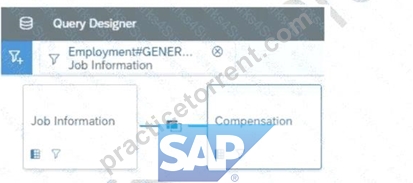
When you preview the query, you only get the current compensation information for the employees. Why do you only receive the current records? Note: There are 2 correct answers to this question.
- A. The compensation table time filter is set to: As of Date > Dynamic Date: Today.
- B. The compensation table time filter is set to: Same Filter as First Table.
- C. The Job information table time filter is set to: As of Date > Dynamic Date: Today.
- D. The Query Advanced Filter is set to: Job Information effective start date equal to Dynamic Date Today.
Answer: A,D
Explanation:
* Understanding Time Filters in Query Designer
* When creating a query, time filters determine the scope of the data retrieved. Filters such as As of Date or Dynamic Date often default to "Today," which retrieves only current records.
* Reason for Current Records Only
* Option B: The Compensation table filter is explicitly set to As of Date > Dynamic Date: Today.
This restricts the results to only the current compensation records.
* Option D: The Job Information filter is configured to match records with the effective start date equal to today, which also limits the results to current data.
* Why Other Options are Incorrect
* A: This filter applies to Job Information, not Compensation, and does not explain why only current compensation records are retrieved.
* C: "Same Filter as First Table" would align filters between tables, but does not necessarily restrict to current data.
References
* SAP SuccessFactors Query Designer Guide
NEW QUESTION # 30
......
SAP C_THR92_2505 Exam Syllabus Topics:
| Topic | Details |
|---|---|
| Topic 1 |
|
| Topic 2 |
|
| Topic 3 |
|
| Topic 4 |
|
Ultimate Guide to Prepare C_THR92_2505 Certification Exam for SAP Certified Associate: https://actual4test.practicetorrent.com/C_THR92_2505-practice-exam-torrent.html